

Preparing for Windows 10 End of Life: Risks, Timelines, and Next Steps
Microsoft will officially end support for Windows 10 on October 14, 2025. With the date quickly approaching, many organizations are unsure what this change really means, how to prepare, and what the transition will involve.
What Does “End of Life” Mean for Windows 10?
When an operating system reaches End of Life (EOL), Microsoft stops providing:
Security updates
Bug fixes
Vulnerability patches
Technical support
That means starting October 14, 2025, Windows 10 machines will receive no new protections, leaving them exposed to newly discovered cyber threats.
Even if your system looks like it’s running fine, it will quietly become more vulnerable every month after EOL.
How Windows 10 EOL Will Affect Your Daily Operations
Security Risks Increase Immediately
Without security patches, attackers can exploit new vulnerabilities as soon as they’re discovered. Unsupported systems quickly become a top target for:
ransomware
credential theft
phishing-based account takeovers
malware infections
Compliance Risks
Many industries require supported software under frameworks like:
HIPAA
GLBA
IRS 4557
FTC Safeguards Rule
PCI DSS
SOX
Running Windows 10 after EOL may cause compliance gaps or audit findings.
Software Compatibility Issues
Major software vendors will begin phasing out support for Windows 10, causing:
application failures
performance issues
inability to run updates
What Your Organization Should Do Before October 14, 2025
1. Identify all Windows 10 devices
Create an inventory of workstations, laptops, and servers still running Windows 10.
2. Check if your hardware supports Windows 10
Not all processors, TPM modules, or memory configurations qualify. Some machines may need upgrades or replacement.
3. Plan your migration path
Organizations typically choose between:
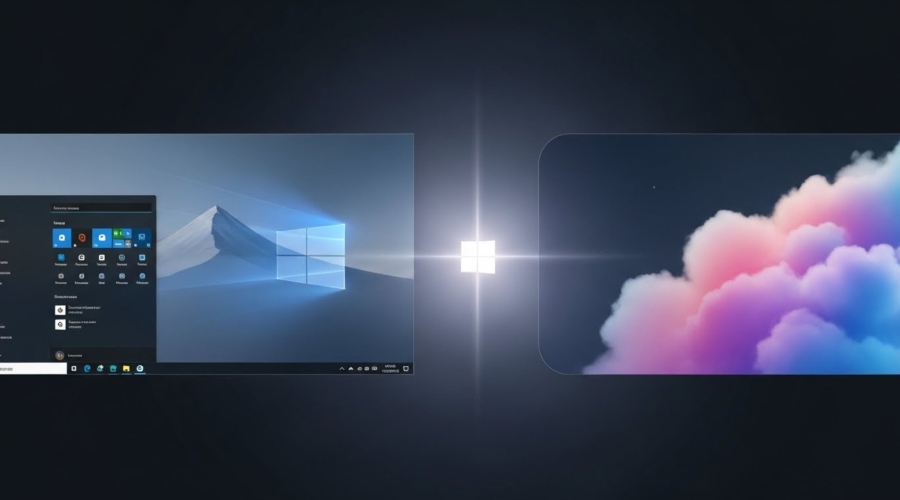
Upgrading existing machines to Windows 11
Replacing aging devices
Virtualizing workloads (Azure, AWS, private cloud)
4. Test your software for Windows 11 compatibility
Some business applications may not run correctly on Windows 11 (especially older accounting, billing, clinical, or industry-specific software).
Solution:
Test critical apps first to avoid downtime after upgrading.
5. Prioritize upgrades for high-risk users
Not all devices pose equal risk. Some must be updated first:
finance and payroll
HR and admin
executives
healthcare staff handling PHI
anyone with access to sensitive data
6. Plan upgrades in phases
Upgrading the entire company at once can cause chaos.
Break it into manageable steps — department by department.
7. Strengthen cybersecurity during the transition
When moving systems around, attackers often take advantage of the chaos. Make sure:
MFA is enforced
backups are verified
antivirus is up to date
admin privileges are limited
firewalls and logging are enabled
What Will the Upgrade Cost?
For some companies, the upgrade is straightforward and inexpensive.
For others, especially those with older hardware or industry-specific software, the cost can differ. But in nearly every case, upgrading is far less expensive than the security and compliance risks of staying on Windows 10.
The cost depends on factors like:
how many devices you have
whether your hardware supports Windows 11
licensing needs
the complexity of your environment
whether legacy applications need special handling
How CyDo Tech Helps
CyDo Tech provides secure, seamless Windows 10 → Windows 11 transitions for businesses of all sizes.
Our support includes:
full environment assessment
hardware compatibility checks
upgrade or replacement planning
secure data & profile migration
application testing
post-deployment hardening
compliance-friendly documentation
We help ensure your transition is efficient, secure, and fully aligned with regulatory requirements.
Want to see what this looks like for your organization?
Fill out the form and we’ll be in touch.